 GlyphIndex
When copying is blocked
If a copy button fails, you can still select the text and copy it yourself. Here is how to use the fallback and check what you paste.
ON THIS PAGE
Recognize the failed-copy state
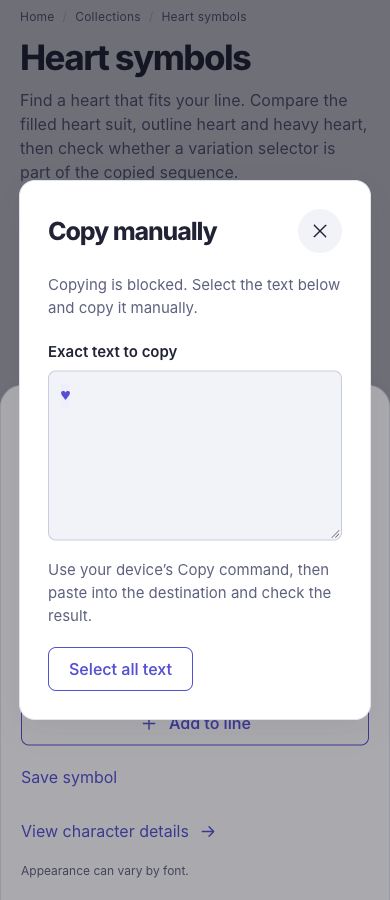
Choose Copy once and read the message. If the browser refuses the request or the clipboard API is unavailable, GlyphIndex opens a manual-copy field containing the requested text. Follow the steps below; for the normal workflow, see Find and copy a symbol.
The fallback applies to a single symbol and to a composed line. It does not read what is already on your clipboard, and it does not repeatedly retry in the background. Leave any valuable existing clipboard content alone until you deliberately choose another copy operation.
Use the manual-copy field
Select the text
Focus the displayed manual-copy field and select its complete contents. On a touch device, use the available selection handles or the operating system’s Select all command.
Use the system copy command
Use the browser or operating system copy action. Keyboard shortcuts vary by platform; the normal copy command in your device’s menu is suitable.
Paste into a safe field
Paste into an empty note or the tool input you control. Check that no label, code-point notation, or surrounding quotation marks were included.
Verify the value
If identity matters, inspect the pasted text before placing it in the final document.
Try a small known sample
♥Paste the sample into Unicode Inspector and choose Inspect text. The heart alone should show one code point and one UTF-16 unit. If you copied the notation U+2665 instead, you will see its letters and digits. Return to the manual-copy field and select the character itself.
Check the exact string you pasted.
Symbol ComposerReview a full line and use its explicit copy or export controls.
Check the browser context when needed
Clipboard access is controlled by the browser. The asynchronous clipboard API is intended for secure contexts, and permission or user-activation rules can differ between browsers and embedded views. A restricted preview, an unfocused document, or a site permission can affect the request. The manual-copy field remains the practical next step when the one-click action fails.
- Return focus to the page and use the copy button as a direct user action.
- If you are inside an embedded preview, try the normal site page when it is available.
- Review the browser’s site permissions only if you want to change them; this documentation does not require a particular permission setting.
- Use a text export for a longer composer result when manual selection would be inconvenient.
Understand what the message can confirm
A resolved clipboard write confirms that the browser accepted that write request. It cannot confirm where you later paste, whether a destination transforms the text, or whether a later application replaces the clipboard contents. Check the pasted result in the destination whenever those details are important.
Sources and method
- W3C Clipboard API and events — Clipboard access model. This specification is a working draft; actual browser permission behavior varies.