 GlyphIndex
Find and copy a symbol
Follow ♥ from search to paste. Learn how to choose the right heart, copy it, and check the result in your document.
ON THIS PAGE
Four steps from search to paste
Find
Search for a visible character, an indexed name, an alias, or a U+ code. For this walkthrough, search for heart or open Heart symbols.
Check
Open Details and read the code points. Select ♥ U+2665 for the example, rather than choosing a similar shape by appearance alone.
Copy
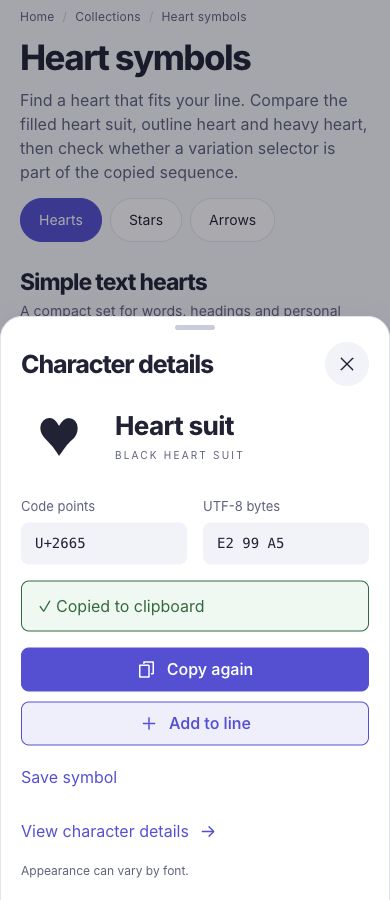
Choose Copy symbol, or activate the symbol’s copy button. Wait for the result message before assuming the clipboard changed.
Paste
Paste into a text field you control. Check the destination’s appearance and inspect the pasted text when exact identity matters.
1. Find the character
Use the search on the home page to look for a character, name, alias, or U+ code. The index covers GlyphIndex’s selected symbols, rather than every Unicode character. If a search returns nothing, try a shorter name or browse a collection. You can still paste an unlisted character into Unicode Inspector.
Compare the heart forms used in this walkthrough.
Plus-minusTry a second exact-character task with ± U+00B1.
2. Check the complete sequence
| Visible example | Code points | What you are choosing |
|---|---|---|
| ♥ | U+2665 | BLACK HEART SUIT, the single character used here. |
| ♡ | U+2661 | WHITE HEART SUIT, an outline form with a different code point. |
| ❤️ | U+2764 U+FE0F | HEAVY BLACK HEART followed by an emoji-presentation selector. |
A sequence may contain more than one code point even when it appears as one symbol. Keep the selector when you intentionally choose the two-code-point form. The copy action preserves the selected string; the receiving application still determines its rendering.
3. Copy the symbol
The character copy button copies the character itself. Details opens information, and Add to line changes the current page’s Your line tray. To edit or export that tray in the full tool, choose Copy line, then Open composer, and paste into its Input text field. The tray does not transfer automatically when you navigate. These separate actions keep inspection and composition from silently replacing your clipboard. GlyphIndex does not read the clipboard automatically.
4. Paste and verify
Made with ♥| Check the heart alone | Expected value |
|---|---|
| Code point | U+2665 |
| UTF-8 bytes | E2 99 A5 |
| UTF-16 units | 1 |
Paste the line into your destination and check the mark next to the words. If it looks different, paste just the heart into Code Point Converter and choose Text → U+ code points. U+2665 confirms that it is the same character even when the destination font draws it differently.
Sources and method
- Unicode Technical Standard #51: Unicode Emoji — Text and emoji presentation sequences and variation selectors.
- Unicode: UTF-8, UTF-16, UTF-32 and BOM — How code points are represented as encoding units and bytes.
- W3C Clipboard API and events — Clipboard access model. This specification is a working draft; actual browser permission behavior varies.