 GlyphIndex
Save or clear local symbol favorites
Keep your most-used symbols for another visit in this browser. Learn how to save them, remove them, and handle a failed save.
ON THIS PAGE
Save your first symbol
Use Saved to keep up to 100 symbols for another visit in this browser. Enable local saving first; copying a symbol does not save it automatically. Try ♥ or → so the saved item is easy to recognize after a reload.
Choose a symbol
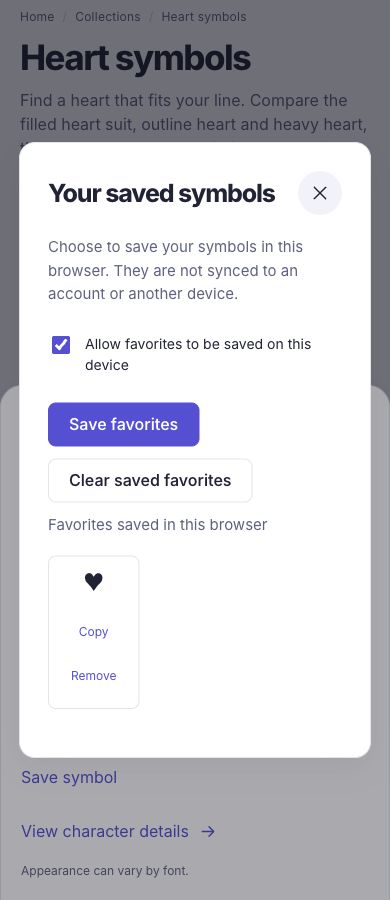
Open Details, review the exact string, and choose Save symbol to open the saved-symbols panel.
Allow local saving
Select Allow favorites to be saved on this device, then choose Save favorites. Read the result message to confirm whether this browser accepted the write.
Reopen Saved
Check the saved list in the same browser profile and on the same site origin.
Remove when finished
Use Remove for one saved symbol or Clear saved favorites for the whole set.
Know where the saved set lives
Favorites use the browser’s local storage for this site. They are not sent to an account or synchronized by GlyphIndex. Another browser profile, another device, or a different site origin has a separate storage context. A development preview and a future production domain can therefore show different saved sets.
| Item | Stored by favorites? | What it means |
|---|---|---|
| Symbols you explicitly save | Yes, if local saving succeeds | Available again in the same storage context until removed or cleared. |
| Text you paste into a tool | No automatic favorite | Working text is separate from the saved-symbol feature. |
| System clipboard contents | No | The clipboard belongs to the operating system and is not read by this feature. |
| An account or remote backup | No | GlyphIndex does not provide account recovery or cross-device sync. |
Handle unavailable storage
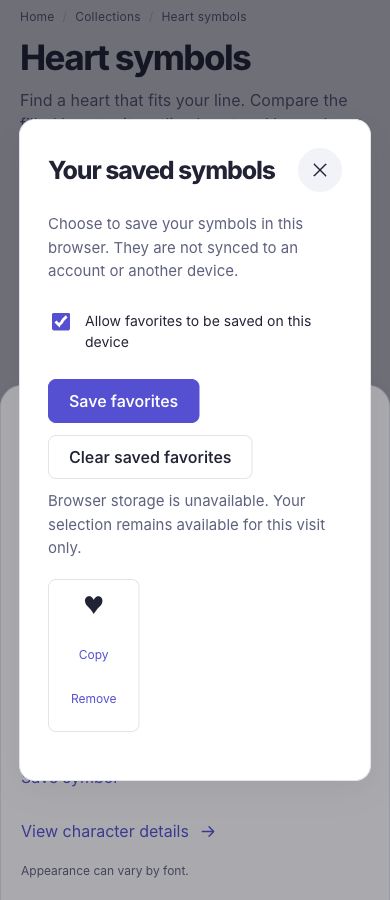
Browser policies, private browsing behavior, storage limits, or cleared site data can prevent a write or remove a previous saved set. GlyphIndex reports a failed save instead of claiming that the symbol will be there next time. You can continue to copy and compose text without enabling persistent favorites.
If saving fails, keep the set in your own note or use Symbol Composer to download a copy. Read the message before trying again. If the browser has cleared its site data, GlyphIndex has no server copy from which to restore the old set.
| What you notice | What to check |
|---|---|
| The set is missing on another visit | Use the same site address and browser profile. Check whether site data was cleared. |
| Saving reports an error | The page could not confirm a storage write. Keep an independent copy before closing it. |
| A saved symbol is not in Your line | Favorites and the composer tray are separate. Copy the saved symbol, then paste it into the composer. |
Prepare a small line and export a local copy when you need one.
Office symbolsChoose a compact working set for everyday notes.
Clear the saved set
Open Saved and choose Clear saved favorites to remove this feature’s stored selection. Check the empty state after the action. If storage access is blocked, the page will explain that it could not confirm a persistent change; use the browser’s site-data controls when you need to remove data that the page cannot access.
Clearing favorites does not erase a previously exported file, a note in another application, or your system clipboard. Remove those separately with the controls of the relevant application. Likewise, a copied symbol may remain on the clipboard after you remove it from favorites.
Sources and method
- WHATWG HTML: Web storage — Origin-scoped local storage and possible storage-policy failures.