 GlyphIndex
Preview and apply text normalization
See what each normalization form changes. Compare the preview with your original text, then apply the result you want to keep.
ON THIS PAGE
Choose a form for a specific purpose
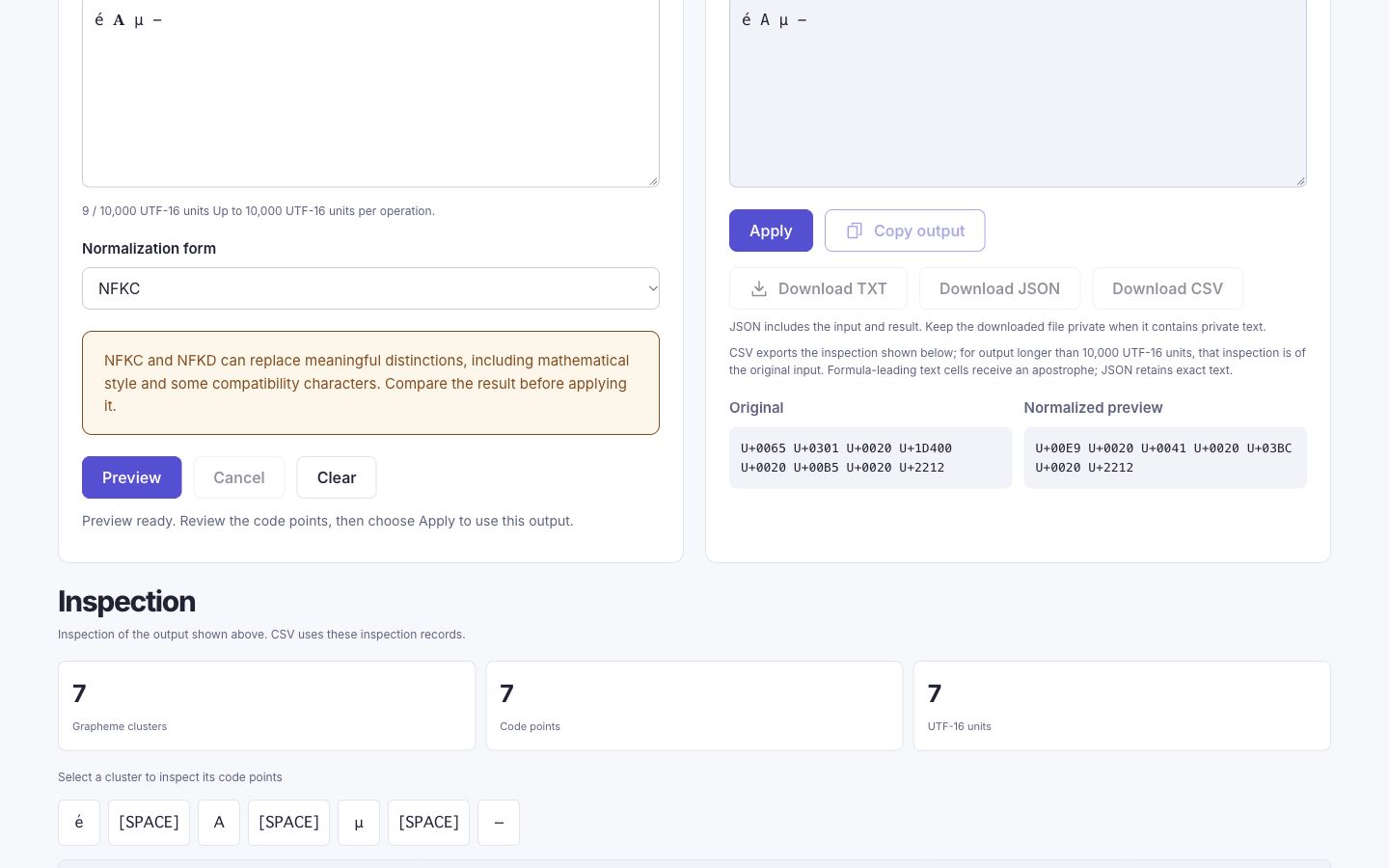
Open Unicode Normalizer, paste a short sample, and choose a form. Select Preview to compare the proposed text with the original. Nothing becomes available to copy or download until you choose Apply.
| Form | Operation | Review focus |
|---|---|---|
| NFC | Canonical decomposition followed by composition. | Canonical equivalents can converge on a composed representation. |
| NFD | Canonical decomposition. | A precomposed letter may become a base letter and combining marks. |
| NFKC | Compatibility decomposition followed by composition. | Review lost compatibility distinctions, including some styled characters. |
| NFKD | Compatibility decomposition. | Review both compatibility changes and decomposed sequences. |
Compare a canonical-equivalence example
é| Form | Result for the sample | Code points |
|---|---|---|
| NFC | é | U+00E9 |
| NFD | é | U+0065 U+0301 |
Read the output values as well as the glyph. If the counts are unfamiliar, compare code points and grapheme clusters. “Unchanged” means the selected form left this input as it was; it does not validate the text for every application.
Review compatibility changes carefully
é 𝐀 µ −| Original | NFKC result | Decision to make |
|---|---|---|
| 𝐀 — U+1D400 | A — U+0041 | Is losing the mathematical bold character appropriate here? |
| µ — U+00B5 | μ — U+03BC | Does the destination require this exact normalized sequence? |
| − — U+2212 | − — U+2212 | The minus sign is not turned into U+002D hyphen-minus by NFKC. |
The first two examples change under compatibility normalization. That can be useful for a defined comparison task, but it is not a reason to rewrite a document without review. The last example prevents a common assumption: normalization does not replace every similar-looking mark with a familiar keyboard character.
Apply the reviewed result
Preview
Run the chosen form and compare the original and output code points.
Review
Read the compatibility warning for NFKC or NFKD and check whether each change is appropriate.
Apply
Use the separate Apply action when the proposed result is the one you want.
Copy or export
Copy the reviewed result or save it locally, while retaining the original separately if needed.
Changing the source text or selected form requires a new preview. Do not rely on an old result after editing the input. If you need to compare a result in more detail, copy that result into Unicode Inspector and look at its individual code points.
Sources and method
- Unicode Standard Annex #15: Normalization Forms — Canonical and compatibility equivalence, and the four normalization forms.
- Unicode: UTF-8, UTF-16, UTF-32 and BOM — How code points are represented as encoding units and bytes.